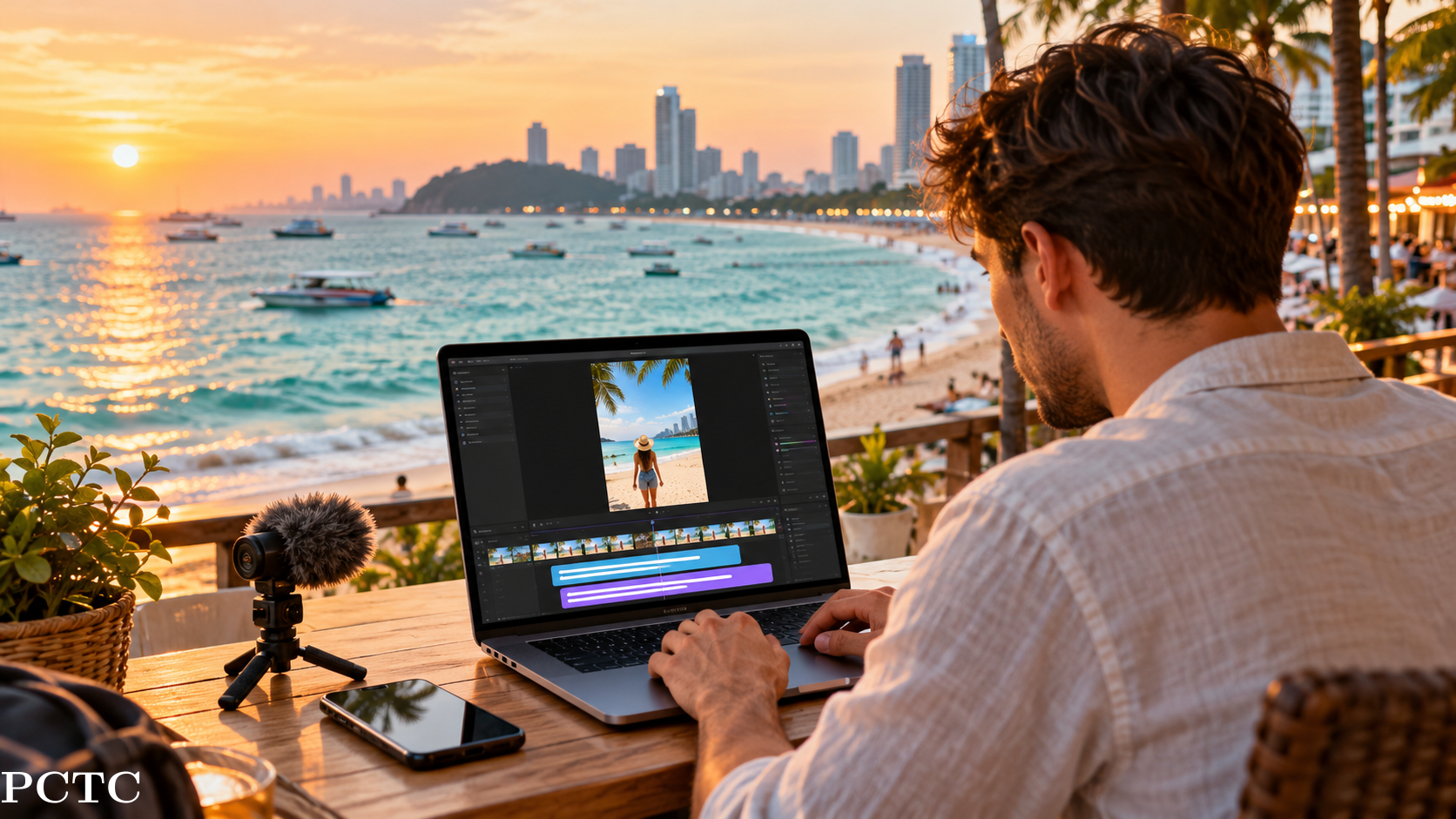
A beach looks calm on camera. The recording is usually another story: wind across the microphone, music from a nearby café, waves in the background and someone speaking while walking. That mix is common in Pattaya travel videos, and it is exactly why Thai subtitles need more than a quick copy-and-paste job.
The good news is that you do not have to type every sentence from the beginning. A Thai subtitle generator can create a timed first draft from spoken Thai. The important part comes next: checking the words, keeping each phrase readable and making sure the text still looks clear over a bright beach, a busy night market or a moving street scene.
This guide explains how to add Thai subtitles to a video without turning the editing process into a second holiday.
Why add Thai subtitles to a travel video?
Travel videos are often watched in places where sound is inconvenient: on public transport, in a hotel lobby or during a quick scroll at work. On-screen captions let the story continue even when the volume is low.
They are especially useful when a video includes:
- a Thai voice-over explaining an itinerary;
- directions to a pier, beach or attraction;
- a street-food review with prices and dish names;
- an interview with a local guide;
- practical advice about transport, tickets or opening times;
- a hotel, yacht or tour presentation.
Subtitles also make names and numbers easier to catch. A viewer may hear “Bali Hai Pier” or “Koh Larn,” but seeing the name on screen gives them something they can remember and search later.
There is also an important difference between the text below a post and the text inside the video. The post caption sets the mood and gives context. On-screen subtitles show what the speaker is saying. If you need ideas for the first type, this collection of travel Reel caption ideas is a useful place to start. The rest of this guide focuses on spoken words inside the video.
Before you generate captions, clean up the source
Automatic transcription begins with the audio it receives. A little preparation here saves a lot of correction later.
Finish the main video edit first
Trim unused clips before generating subtitles. If you caption a five-minute rough cut and later remove half of it, you will spend time fixing timings that no longer match.
Keep the voice louder than the music
Background music can give a Reel energy, but it should not compete with the narration. Lower the music during speech, especially in clips recorded at a market, beach bar or busy road.
Watch for wind and overlapping speakers
Sea breeze sounds gentle to a person standing there, but a phone microphone can turn it into a heavy rumble. Use the cleanest audio take available. When two people speak at once, replay that section and expect to correct it manually.
Write down names before you begin
Keep a short list of place names, hotel names, dishes and people mentioned in the recording. Proper nouns are easier to check when the correct spelling is already beside you.
How to add Thai subtitles to a travel video
The exact buttons vary between editors, but a reliable workflow follows the same sequence.
Upload the final video
Use the best-quality version of the edited clip. For a vertical Reel or Short, keep the original 9:16 file rather than resizing it several times. Repeated compression can make both the picture and the voice less clear.
Select Thai as the spoken language
Choose Thai because Thai is being spoken in the recording. Do not select Thai simply because you want the final text to appear in Thai.
This distinction matters: transcription writes down the language that is spoken. Translation changes speech or text from one language into another. They are not the same process.
Generate the first subtitle draft
Use a tool that supports Thai speech, editable timing and the export format you need. For example, you can create Thai captions from a video with AIVideoCaption, review the generated Thai text and export either a captioned MP4 or an SRT file.
Treat the automatic result as a starting point, not the final approval. Even a strong draft can mishear a location, an English brand name or a quiet word at the end of a sentence.
Review the text while the video plays
Listen once at normal speed before changing the style. Check meaning first.
Pay close attention to:
- Pattaya and Chonburi place names;
- Thai personal names;
- English words used inside Thai speech;
- prices, dates and times;
- food names and attraction names;
- short words covered by music or wind.
If the speaker changes a sentence halfway through, keep what was actually said. Travel videos often sound natural because they are not read from a script.
Break each caption at a natural phrase
Thai does not place a space between every word in the way English does. Spaces commonly separate phrases, so an editor cannot rely on English-style word spacing when it wraps a line. The W3C's guidance on line breaking across writing systems notes that Thai text normally needs word-aware wrapping even though word boundaries are not visibly separated by spaces.
For a viewer, the rule is simpler: keep together the words that belong to one idea. Read the line aloud. If the break makes the phrase feel unfinished or changes how quickly it can be understood, move the break.
Avoid filling the entire width of a phone screen. Two short, balanced lines are usually easier to follow than one long strip of Thai text.
Style captions for the footage, not just the template
A white caption may disappear over the sky. Bright green may look clear over a dark street but become difficult to read on tropical foliage. Preview the text over the actual video instead of choosing a style from a blank sample.
For most travel Reels:
- use a clean Thai-compatible font;
- add enough contrast through a shadow, outline or background;
- keep captions away from faces and important landmarks;
- leave room for the platform's buttons and description area;
- avoid making every word jump or change colour;
- inspect vowels and tone marks at the final viewing size.
A highlight effect works best on a few useful words, such as a place name or price. When every word is treated as the important word, none of them feels important.
Export as MP4 or SRT
Choose the format based on where the video will be published.
| Format | Best for | What to know |
|---|---|---|
| Captioned MP4 | Instagram Reels, TikTok, Facebook and videos where the text must always be visible | The subtitles are burned into the picture and keep their chosen style. |
| SRT subtitle file | YouTube and platforms or editors that accept a separate caption track | Viewers may be able to turn captions on or off, and the text remains separate from the video. |
YouTube allows creators to upload a timed subtitle file from the Subtitles section in YouTube Studio. Its official caption upload guide explains the available options.
Before publishing, watch the exported file from beginning to end. Check the first caption, the last caption and any section where the speaker talks quickly.
Four travel-video examples
A Pattaya day-trip Reel
A short voice-over might explain the morning pickup, ferry, beach stop and return time. Keep the captions concise, and check every number against the booking information.
A street-food review
Food names, prices and short reactions matter more than decorative animation. Check spellings against the stall menu when possible, and make sure the price stays on screen long enough to read.
An interview with a local guide
Natural conversation may include pauses, repeated words and English names. Preserve the speaker's meaning, but split long answers into comfortable reading units. If two voices overlap, review that moment manually.
A hotel or tour promotion
Keep the brand, room type, pickup location and offer details consistent with the business's official wording. Captions should support the footage rather than cover the room view, boat or destination being promoted.
Common mistakes to avoid
Confusing Thai transcription with Thai translation
Selecting Thai for English speech does not automatically produce a proper Thai translation in a transcription workflow. Start with Thai audio when creating Thai transcription, or use a separate translation process that clearly supports your required language pair.
Publishing the first automatic draft
Automation saves typing time; it does not know whether a similar-sounding word is the name of a hotel, island or person. Always complete a human review.
Splitting Thai text wherever it reaches the edge
A visually even line is not necessarily a meaningful line. Break at a phrase that a Thai reader can understand naturally.
Covering the subject with captions
The centre of the frame is not always the best position. Move the text when it blocks a face, plate of food, price board or landmark.
Using too much animation
Travel footage already has movement. A simple caption with strong contrast is often easier to read than a different effect on every word.
Final pre-publish checklist
Before posting, ask:
- ✓ Is Thai the language actually spoken in the video?
- ✓ Have all place names, prices and times been checked?
- ✓ Do line breaks follow the meaning of each phrase?
- ✓ Are vowels and tone marks clear on a phone screen?
- ✓ Does the text stay away from platform buttons and faces?
- ✓ Is the music lower than the voice?
- ✓ Did you watch the exported MP4 or test the SRT file?
- ✓ Does every subtitle remain on screen long enough to read?
A better caption starts with a clear story
Thai subtitles cannot rescue a travel video that has no point of view, but they can make a useful story much easier to follow. Begin with one clear promise: a route, a recommendation, a price, a lesson or a moment worth sharing. Then let the captions support that story without taking over the scenery.
For a Pattaya Reel, that may be as simple as explaining how to reach the pier, what to order at a market or why one beach suits a quiet afternoon. Keep the Thai natural, keep the timing close to the voice and check the finished video as carefully as the footage itself.
Frequently asked questions
Can I generate Thai subtitles automatically?
Yes. A compatible tool can transcribe spoken Thai into a timed first draft. You should still review place names, borrowed English words, numbers, phrase breaks and any speech affected by noise.
Can I add Thai subtitles to an Instagram Reel?
Yes. Create and review the Thai captions, position them within the vertical frame, then export a captioned MP4. Keep text clear of Instagram's interface areas so buttons and descriptions do not cover it.
Can I create a Thai SRT file from a video?
Yes. Choose Thai as the spoken language, generate and correct the transcript, then export an SRT file if your caption tool and plan support it. Test the file after uploading it to your destination platform.
Does choosing Thai translate English speech into Thai?
No. Choosing Thai in a transcription workflow is intended for Thai speech. Translation is a separate process and should only be used when the required source and target languages are explicitly supported.
Should I use burned-in captions or a separate subtitle file?
Use a captioned MP4 when the styled text should always be visible, especially on short-form social platforms. Use SRT when the platform accepts a separate subtitle track and viewers should be able to control captions.